Forms in PDFKit
Forms are an interactive feature of the PDF format. Forms make it possible to
add form annotations such as text fields, combo boxes, buttons and actions.
Before adding forms to a PDF you must call the document initForm() method.
initForm(options)- Must be called before adding a form annotation to the document. See Font for theembedFontsoption.
doc.initForm(); // uses the current document font as the default form field font
Form Annotation Methods
Form annotations are added using the following document methods.
formText( name, x, y, width, height, options)formPushButton( name, x, y, width, height, options)formCombo( name, x, y, width, height, options)formList( name, x, y, width, height, options)formRadioButton( name, x, y, width, height, options)formCheckbox( name, x, y, width, height, options)
The above methods call the formAnnotation method with
type set to one of text, pushButton, radioButton, checkbox, combo
or list.
formAnnotation( name, type, x, y, width, height, options)
name Parameter
Form annotations are each given a name that is used for identification. Field
names are hierarchical using a period ('.') as a separaror (e.g.
shipping.address.street). More than one form field can have the same name.
When this happens, the fields will have the same value. There is more
information on name in the Field Names section below.
options Parameter
Common Annotation Options
The following options are accepted by all form annotation methods:
parent[PDFReference] - Parent field returned byformField.structParent[PDFStructureElement] - Structure element returned bydoc.struct(). Use a separateFormelement for each widget in a tagged PDF. This is distinct fromparent, which controls the form field hierarchy.required[boolean] - The field must have a value by the time the form is submitted.noExport[boolean] - The field will not be exported if a form is submitted.readOnly[boolean] - The user may not change the value of the field, and the field will not respond to mouse clicks. This is useful for fields that have computed values.value[number|string] - The field's value.defaultValue[number|string] - The default value to which the field reverts if a reset-form action is executed.alternateName[string] - Alternate field name (TU), used as the field's accessible name or tooltip. Use a meaningful description, not just the internal field name.backgroundColor- Field background color.borderColor- Field border color.fontSize[number] - Sets the font size used in the field appearance string. The default,0, means auto sizing. An explicit size applies even when the field uses the default form font.hidden[boolean] - Builds the field starting hidden, instead of the usual default of visible and printable, for a field an interactive action (seeonClickbelow) will reveal later.
Color options accept an array of RGB values, a hex color, or a named CSS color. Method-specific options listed below are accepted in addition to these common options.
Field Actions
These options are accepted by all form annotation methods. Each takes trusted JavaScript to run when the event occurs, given as a string or as a function:
onClick- The mouse button is released inside the field.onMouseDown- The mouse button is pressed inside the field.onMouseEnter- The cursor enters the field.onMouseExit- The cursor leaves the field.onFocus- The field receives the input focus.onBlur- The field loses the input focus.
doc.formPushButton('btn1', 10, 200, 100, 30, {
  label: 'Test Button',
  onClick: 'app.alert("clicked");'
});
A function is written into the document as its source text and runs in the
viewer, not where the document was generated, so it cannot use variables or
functions from the surrounding program. this is the document, and the
viewer's own globals, such as app, are in scope:
doc.formPushButton('btn1', 10, 200, 100, 30, {
  label: 'Test Button',
  onClick: function () {
    app.alert('clicked');
    this.getField('otherField').value = 'updated from btn1';
  }
});
Write the handler with function syntax; an arrow function cannot take the
this binding.
Text Field Options
These options are accepted by formText:
align[string] - Sets the alignment toleft,centerorright.multiline[boolean] - Allows the field to have multiple lines of text.password[boolean] - The text will be masked (e.g. with asterisks).noSpell[boolean] - If set, text entered in the field is not spell-checked.format[object] - See the section on Text Field Formatting below.
doc.formText('leaf2', 10, 60, 200, 40, {
  multiline: true,
  align: 'right',
  format: {
    type: 'date',
    params: 'm/d'
  }
});
Combo Field Options
These options are accepted by formCombo:
select[array] - Array of choices to display in the combo field.align[string] - Sets the alignment toleft,centerorright.edit[boolean] - Allows the user to enter a value in the field.sort[boolean] - The field options will be sorted alphabetically.multiSelect[boolean] - Allows more than one choice to be selected.noSpell[boolean] - If set andeditis true, text entered in the field is not spell-checked.
opts = {
  select: ['', 'github', 'bitbucket', 'gitlab'],
  value: '',
  defaultValue: '',
  align: 'left'
};
doc.formCombo('ch1', 10, y, 100, 20, opts);
List Field Options
These options are accepted by formList:
select[array] - Array of choices to display in the list field.align[string] - Sets the alignment toleft,centerorright.sort[boolean] - The field options will be sorted alphabetically.multiSelect[boolean] - Allows more than one choice to be selected.
Push Button Field Options
These options are accepted by formPushButton:
label[string] - Sets the label text. You can also set an icon, but for this you will need to 'expert-up' and dig deeper into the PDF Reference manual.onClick[string | function] - JavaScript to run when the button is clicked. See Field Actions.
var opts = {
  backgroundColor: 'yellow',
  label: 'Test Button'
};
doc.formPushButton('btn1', 10, 200, 100, 30, opts);
Radio Button Field Options
These options are accepted by formRadioButton:
toggleToOffButton[boolean] - Allows a selected radio button to be toggled off by clicking it again.
Checkbox Field Options
formCheckbox accepts the common annotation options.
Form Field Options
formField( name, options ) creates an invisible field node and accepts these
options:
parent[PDFReference] - Parent field returned byformField.required[boolean] - The field must have a value by the time the form is submitted.noExport[boolean] - The field will not be exported if a form is submitted.readOnly[boolean] - The user may not change the value of the field.value[number|string] - The field's value.defaultValue[number|string] - The default value to which the field reverts if a reset-form action is executed.backgroundColor- Field background color.borderColor- Field border color.fontSize[number] - Sets the font size used in the field appearance string.
Numeric values and defaults in text and choice fields are stored as text. For example,
value: 0 and value: '0' set the same field value.
Text Field Formatting
When needing to format the text value of a Form Annotation, the following
options are available. This will cause predefined document JavaScript actions
to automatically format the text. Refer to the section Formatting scripts in
Acrobat Forms
Plugin
of the Acrobat SDK documentation for more information.
Add a format dictionary to options. The dictionary must contain a type attribute.
format- generic objectformat.type- value must be one ofdate,time,percent,number,zip,zipPlus4,phoneorssn.
When type is date, time, percent or number the format dictionary must
contain additional parameters as described below.
Date format
format.param(string) - specifies the value and display format and can include:d- single digit day of monthdd- double digit day of monthm- month digitmm- month double digitmmm- abbreviated month namemmmm- full month nameyy- two digit yearyyyy- four digit yearhh- hour for 12 hour clockHH- hour for 24 hour clockMM- two digit minutett- am or pm
// Date text field formatting
doc.formText('field.date', 10, 60, 200, 40, {
  align: 'center',
  format: {
    type: 'date',
    param: 'mmmm d, yyyy'
  }
});
Time format
format.param- value must be a number between 0 and 3, representing the formats "14:30", "2:30 PM", "14:30:15" and "2:30:15 PM".
// Time text field formatting
doc.formText('field.time', 10, 60, 200, 40, {
  align: 'center',
  format: {
    type: 'time',
    param: 2
  }
});
Number and percent format
format.nDec[number] - the number of places after the decimal pointformat.sepComma[boolean] - display a comma separator, otherwise do not display a separator.format.negStyle[string] (number only) - the value must be one ofMinusBlack,Red,ParensBlack,ParensRedformat.currency[string] (number only) - a currency symbol to displayformat.currencyPrepend[boolean] (number only) - set to true to prepend the currency symbol
// Currency text field formatting
doc.formText('leaf2', 10, 60, 200, 40, {
  multiline: true,
  align: 'right',
  format: {
    type: 'number',
    nDec: 2,
    sepComma: true,
    negStyle: 'ParensRed',
    currency: '$',
    currencyPrepend: true
  }
});
Field Names
Form Annotations are, by default, added to the root of the PDF document. A PDF
form is organized in a name heirarchy, for example shipping.address.street.
Capture this heirarchy either by setting the name of each form annotation with
the full hierarchical name (e.g. shipping.address.street) or by creating a
hierarchy of form fields and form annotations and refering to a form field or form
annotations parent using options.parent.
A form field is an invisible node in the PDF form and is created using the
document formField method. A form field must include the node's name (e.g.
shipping) and may include other information such as the default font that is
to be used by all child form annotations.
Using the formField method you might create a shipping field that is added
to the root of the document, an address field that refers to the shipping
field as it's parent, and a street Form Annotation that would refer to the
address field as it's parent.
Create form fields using the document method:
formField( name, options )- returns a reference to the field
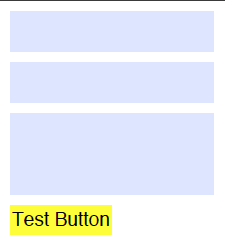
-- Example PDF using field hierarchy, three text fields and a push button --
doc.initForm(); // uses the current document font as the default form field font

let rootField = doc.formField('rootField');
let child1Field = doc.formField('child1Field', { parent: rootField });
let child2Field = doc.formField('child2Field', { parent: rootField });

// Add text form annotation 'rootField.child1Field.leaf1'
doc.formText('leaf1', 10, 10, 200, 40, {
  parent: child1Field,
  multiline: true
});
// Add text form annotation 'rootField.child1Field.leaf2'
doc.formText('leaf2', 10, 60, 200, 40, {
  parent: child1Field,
  multiline: true
});
// Add text form annotation 'rootField.child2Field.leaf1'
doc.formText('leaf1', 10, 110, 200, 80, {
  parent: child2Field,
  multiline: true
});

// Add push button form annotation 'btn1'
var opts = {
  backgroundColor: 'yellow',
  label: 'Test Button'
};
doc.formPushButton('btn1', 10, 200, 100, 30, opts);
The output of this example looks like this.
Advanced Form Field Use
Older implementations used to pass all unknown options to the internal PDF object structure. A small set of direct PDF dictionary escape hatches is still recognized: Ff, MK.CA, and AA when a format option is used but its use is discouraged and likely will be removed in future versions.
If an option is not supported, open an issue on Github and it will be considered for addition to the API.
Font
The font used for a Form Annotation is set using the document.font method.
Yes that's the same method as is used when setting the text font.
initForm uses the current font as the default. Call font before initForm
to change the default, or before formField or a form annotation method to
use a different font for that field.
doc.font(fontBytes);
doc.formText('myfield', 10, 10, 200, 20);
Pass { embedFonts: true } to initForm to embed full copies of the fonts used
in the form. See Form Field Appearances for when to use this.
Named JavaScript
In support of Form Annotations that execute JavaScript in PDF, you may use the following document method:
addNamedJavaScript( name, string )
Limitations
It is recommended that you test your PDF form documents across all platforms and viewers that you wish to support.
Form Field Appearances
Form elements must each have an appearance set using the AP attribute of the
annotation. If this attribute is not set, the form element's value may not be
visible. Because appearances can be complex to generate, Adobe Acrobat has an
option to build these apperances from form values and Form Annotation
attributes when a PDF is first opened. To do this PDFKit always sets the Form dictionary's
NeedAppearances attribute to true. This could mean that the PDF will be
dirty upon open, meaning it will need to be saved.
The NeedAppearances flag may not be honored by all PDF viewers.
Some form documents may not need to generate appearances. This may be the case for text Form Annotations that initially have no value. This is not true for push button widget annotations. Please test
With a custom font, a viewer building the appearance this way may show the
field in a substitute font: the font PDFKit embeds for page content is
subsetted and addressed by glyph id, which gives the viewer no way to resolve
the field's text itself. Passing embedFonts to initForm embeds a
complete copy of each font used in a field, with a character map viewers can
use for glyphs covered by both the font and WinAnsi encoding:
doc.font(fontBytes);
doc.initForm({ embedFonts: true });
That copy holds the whole font rather than the glyphs used so far, so it adds roughly the size of the font file to the document, per font. It is off by default for that reason, and only affects custom fonts — the standard 14 fonts are not embedded at all.
Document JavaScript
Many PDF Viewers, aside from Adobe Acrobat Reader, do not implement document JavaScript. Even Adobe Readers may not implement document JavaScript where it is not permitted by a device's app store terms of service (e.g. iOS devices).
Radio and Checkboxes
Support for radio and checkboxes requires a more advanced attention to their rendered appearances and are not supported in this initial forms release.